How to Schedule Social Media Posts for Free with Publer
Managing multiple social media accounts can be time-consuming and overwhelming, especially for small businesses and solo entrepreneurs who don’t have a dedicated social media team. Luckily, there are tools like Publer that allow you to schedule your social media posts in advance, helping you stay organized and consistent across all platforms. The best part? Publer offers a free plan that gives you access to many of its features without spending a dime.
In this blog post, we’ll walk you through the process of using Publer to schedule your social media posts for free. Whether you’re new to social media management or just looking for a better tool to streamline your process, this guide will help you get started.
What Is Publer?
Publer is a social media scheduling tool that allows you to plan and publish posts across multiple platforms, including Facebook, Twitter, LinkedIn, Instagram, Pinterest, and more. Its intuitive interface makes it easy to create, schedule, and manage your social media content in one place. The free plan allows you to connect up to three social media accounts and schedule up to 10 posts at a time, making it an ideal solution for small businesses or individuals managing a few platforms.
Contents
Why Use Publer for Social Media Scheduling?
Before diving into how to use Publer, let’s explore why it’s worth considering as your go-to social media scheduling tool:
1. Ease of Use
Publer’s user-friendly interface makes it accessible for beginners, while its features are robust enough for more experienced users. You don’t need to be a tech expert to navigate the platform or start scheduling your posts.
2. Time-Saving
Scheduling your posts in advance saves you from the daily grind of manually posting on each platform. With Publer, you can batch-create and schedule posts to go live throughout the week, month, or even longer.
3. Multi-Platform Scheduling
Publer allows you to manage all of your social media accounts in one place. You can post to multiple platforms simultaneously, which helps keep your content consistent and saves you time.
4. Post Customization for Each Platform
Even though Publer lets you schedule the same post across multiple platforms, it also allows you to customize each post for different platforms. For example, you can change the character count for Twitter or use hashtags relevant to Instagram.
5. Free Plan
For small businesses or individuals who are just starting, Publer’s free plan offers plenty of functionality. You can manage up to three social accounts and schedule up to 10 posts at any given time, making it a perfect solution if you’re on a tight budget.
Now that you know why Publer is a great tool for social media management, let’s get into how to schedule your posts using the platform.
Step 1: Sign Up for Publer
The first step to scheduling your social media posts with Publer is to sign up for a free account. Here’s how to do it:
- Go to Publer’s website: Visit Publer’s official website and click on the “Sign Up” button.
- Create an account: You can sign up using your email or through social sign-in options such as Google, Facebook, or Apple.
- Choose the Free Plan: Once you’ve created your account, you’ll be prompted to select a plan. Choose the free plan, which allows you to connect up to three social media accounts and schedule 10 posts at a time.
That’s it! You’re now ready to start scheduling your posts.
Step 2: Connect Your Social Media Accounts
After signing up, you’ll need to connect your social media accounts to Publer. Here’s how:
- From the Publer dashboard, click on the “Accounts” tab at the top of the page.
- Click “Add Account” and select the platform you want to connect (e.g., Facebook, Instagram, Twitter).
- Authorize Publer to access your social media account by following the prompts. This typically involves logging in to your social media account and granting permission for Publer to manage your posts.
- Repeat the process to add up to three social media accounts to your Publer dashboard.
Once your accounts are connected, you’ll see them listed on the main dashboard. You’re now ready to start scheduling your posts.
Step 3: Create a New Post
Now that your social media accounts are connected, it’s time to create your first scheduled post.
- From the Publer dashboard, click on the “Create” button located at the top of the page.
- Select the social media accounts where you want the post to appear. You can choose one account or multiple accounts if you want to post the same content across different platforms.
- Write your post: In the text box, type out your social media post. Publer allows you to format the text, add emojis, and include links.
- Add images or videos: If your post includes media, click on the image or video icon to upload the file from your computer. You can also choose from stock photos or GIFs if needed.
Tip: Customize Posts for Each Platform
Even though you can post the same content to multiple platforms, it’s often a good idea to customize each post for the platform’s unique audience. For example, you may want to shorten the text for Twitter or use more hashtags for Instagram.
Step 4: Schedule Your Post
Once you’ve created your post, it’s time to schedule it for future publishing.
- Click the “Schedule” button below the text box.
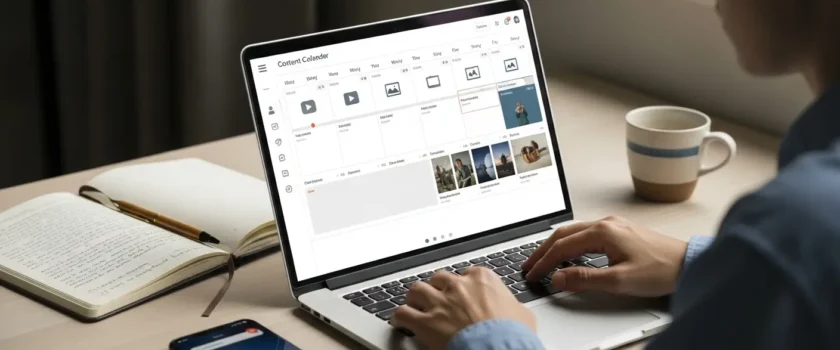
- Choose the date and time you want the post to go live. Publer’s calendar interface makes it easy to pick the exact moment when your post should be published.
- Optional: Set recurring posts. If you want the post to be repeated (e.g., for a weekly promotion), Publer allows you to set recurring schedules.
- Click “Schedule” to finalize the post.
Your post is now scheduled and will be automatically published at the date and time you selected. You can view all your scheduled posts in the “Posts” tab on the dashboard.
Step 5: Manage Your Scheduled Posts
If you need to make changes to your scheduled posts, Publer makes it easy to manage and edit your content.
- Go to the “Posts” tab on the dashboard. Here, you’ll see a list of all your scheduled posts.
- Click on a post to edit, reschedule, or delete it. You can also change the accounts that the post will be published on.
- Use the calendar view to get a clear picture of your content schedule. This feature helps you plan your social media posts more effectively by ensuring there are no gaps or overlaps in your schedule.
Step 6: Use Analytics to Improve Your Strategy
While the free version of Publer is limited in terms of analytics, you can still track basic metrics such as post performance and engagement. Publer provides insights into how your posts are performing across various platforms, which can help you tweak your content strategy over time.
If you want more detailed analytics, you can always upgrade to one of Publer’s paid plans, which offer advanced tracking and reporting features.
Additional Tips for Scheduling Social Media Posts with Publer
- Batch your posts: Save time by batching your social media posts. Instead of creating posts daily, dedicate a few hours once a week to plan and schedule all your content in one sitting.
- Use recurring posts wisely: If you have regular promotions, events, or sales, take advantage of Publer’s recurring post feature to keep your audience informed without having to create new content each time.
- Plan ahead: Use Publer’s calendar view to plan your content weeks or even months in advance. This helps ensure consistency and gives you time to focus on other areas of your business.
Conclusion
Publer is a fantastic free tool for small business owners, freelancers, and anyone managing multiple social media accounts. It offers an intuitive platform that allows you to schedule and manage your posts without the hassle of posting in real time. By following this guide, you can streamline your social media strategy and save valuable time that can be better spent growing your business.
Why wait? Sign up for Publer today and take control of your social media presence with ease!
Share
Facebook
X
LinkedIn
Telegram
Tumblr
Whatsapp
VK
Mail